


Financial Data Analysis (Excel & BI): Tools for the Digital Accountant

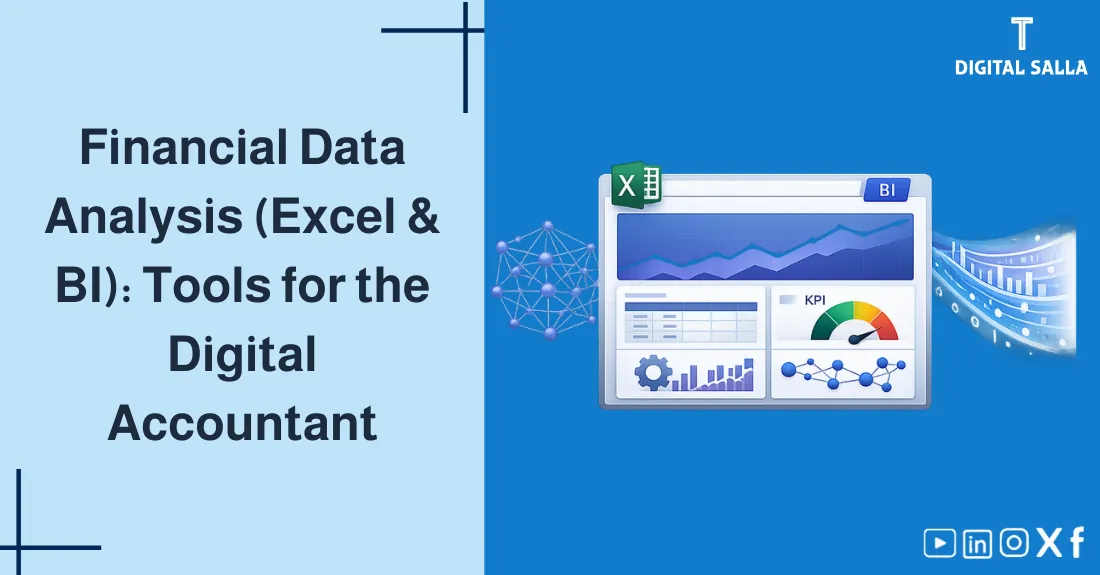
Financial Data Analysis (Excel & BI): The Digital Accountant’s Tools
Financial Data Analysis is no longer just “Excel and some tables”; it has become a decision-making skill. This guide explains the Excel & BI tools that the Digital Accountant needs: From data preparation and cleansing, to automation with Power Query, then building dashboards in Power BI— with a practical framework titled Data Analysis for Accountants to know what to do first and what to postpone.
- A practical definition of Financial Data Analysis and its importance for accountants.
- Basic Excel tools: Functions + Pivot + Power Query.
- When and why to move to Power BI to build interactive dashboards.
- Data Governance (Master Data) as a condition for analysis quality.
- Practical applications: Anomaly detection, Spend Analysis, Receivables, and Profitability.
1) What is Financial Data Analysis? (Practical Definition)
Financial Data Analysis is transforming raw accounting data (entries, invoices, banks, inventory, receivables…) into actionable answers: Why did expenses rise? Where are margins leaking? Who are the most profitable customers? What are the risks in receivables? And is cash flow improving or deteriorating?
2) Digital Accountant Skills in Analysis: What to learn in order?
If you are building yourself as a digital accountant, these are the most important Digital Accountant Skills in Financial Data Analysis in the order that yields faster results:
- Understanding Accounting Data Structure: Chart of accounts, cost centers, branches, taxes, and linking between document and entry.
- Data Quality: Cleaning Master Data and standardizing definitions (Customer/Supplier/Item/Cost Center).
- Analytical Excel: Basic Functions + Tables + Pivot Tables.
- Data Prep Automation: Power Query to reduce repetitive manual work.
- BI: Power BI for dashboards, management tracking, and semi-automatic updates.
- Governance & Controls: Preventing errors, manipulation, and managing data changes.
3) Data Sources & Preparation: Before Analysis… Fix the Foundation
The biggest reason Financial Data Analysis fails within companies is “Ungoverned Data.” Before you open Excel or Power BI, ask: Where will the data come from? Is it standardized? Are indicator definitions consistent?
| Source | Data Examples | Practical Note |
|---|---|---|
| ERP / Accounting System | GL, AP, AR, Inventory, Fixed Assets | Best source if governance is strong and journal entries are disciplined |
| Banks | Statement, Collections, Payments | Excellent for verifying flows and Reconciliation |
| Sales/Billing | Invoices, Returns, Discounts | Beware of “Revenue” definition differences between invoice and entry |
| Procurement | POs, Supplier Invoices, Expenses | Important for Spend Analysis and negotiating with suppliers |
| Internal Excel | Tracking tables, Operation files | Powerful but sensitive—requires governance and access controls |
4) Excel for Financial Data Analysis: Accuracy Before “Beauty”
Excel is an essential station in Financial Data Analysis because it combines flexibility and speed, especially when working on entry details or tracking anomalies in specific account movements.
4.1 What distinguishes Excel for the Accountant?
- Quick Analysis: From one file to a result within minutes.
- Precise Details: Manual Drill-down at the document or entry level.
- Modeling: Building What-if scenarios simply.
- Control: Ability to document calculations and explain differences next to the number.
5) Pivot Tables: The Fastest Route to Insight
Pivot Tables are an excellent “lens” in Financial Data Analysis because they summarize thousands of rows into sortable and segmentable summaries: By Account, Branch, Cost Center, Customer, Supplier, or Period.
5.1 Three Practical Uses for the Accountant
- Expense Analysis: Expenses by account then by cost center.
- Revenue Analysis: By Product/Region/Rep/Sales Channel.
- Receivables Analysis: Receivables aging by customer then by branch.
6) Power Query: Automation Before Presentation
If you repeat the same steps (open files → merge → clean columns → transform dates → remove duplicates…), this is not “accounting work” but a “recipe” that should be automated. Here comes Power Query. In the context of Financial Data Analysis, Power Query transforms analysis from manual work into a Repeatable flow.
Excel Functions Practice Pack - Training Excel Files
6.1 Common Automation Examples
- Merging multiple bank statements and standardizing their format.
- Consolidating sales sheets from multiple branches into one file.
- Cleaning Master Data (extra chars/spaces/formatting) before Pivot/BI.
- Preparing a “Fact” table and “Dimensions” table consistently.
7) Power BI: From Individual Analysis to Management Dashboard
When you need the team and management to see the “same truth” with the same definitions and same update—Power BI makes sense. It does not replace Excel, but complements it: Excel for details and verification, and Power BI for monitoring and decision making quickly.
| Dimension | Excel | Power BI |
|---|---|---|
| Details (Drill-down) | Very strong and direct | Strong but depends on data model |
| Automation and Update | Medium (Improves with Power Query) | Strong (Refresh + Sharing + Permissions) |
| Sharing | Files/Multiple Versions | Central Dashboard and Unified Update |
| Definitions Governance | Requires strong control | Easier when managing the data model |
8) Data Analysis for Accountants Framework: 6 Steps So You Don’t Get Lost
To apply Data Analysis for Accountants practically within your company, follow this path. Idea: Start from the “Question” then build Data then Analysis then Decision—not the reverse.
9) Practical Applications on Financial Data: Where will you notice a quick difference?
The best way to solidify the Financial Data Analysis skill is to choose a “Scenario” with quick ROI, then measure the impact. Here are 5 practical scenarios (can be executed with Excel then upgraded to BI later):
9.1 Anomaly Detection
- Unusual movements on a specific expense account in a specific branch.
- Duplicate invoices or payments to the same supplier with the same values.
- Entries outside business hours or by uninvolved users.
9.2 Spend Analysis
One of the analyses yielding direct savings: Aggregating spend by Supplier, Item, and Period, then discovering duplication, negotiation opportunities, and supplier consolidation.
9.3 AR/AP Aging Analysis
- Who are the most delayed customers? Is the delay related to a branch/product/rep?
- What is the percentage of “troubled” receivables compared to sales?
- What is the realistic collection plan (Owner + Deadline + Follow-up)?
9.4 Profitability by Product/Branch/Customer
- Turning profitability from gross level to the true “Profit Driver” level.
- Comparing profitability with operating expenses and distribution costs.
9.5 Cash Forecast
- Transforming the collection and payment schedule into a 4–12 week forward view.
- Integrating banking data with receivables to improve prediction accuracy.
10) Governance & Controls: How to Protect Analysis from Errors and Manipulation?
In real-world projects, the challenge is not creating a beautiful report; the challenge is ensuring that Financial Data Analysis relies on correct data and updates with the same definitions every time.
10.1 Three Layers of Control (Simply)
- Data Control: Master Data + Entry Policies + Change Path.
- Transformation Control: Documented Power Query/ETL + Sample Testing.
- Presentation Control: Constant KPI Definition + Permissions + Change Log.
11) Quick Checklist + KPIs: Start with it this week
11.1 “Analysis Readiness” Checklist
- Decision Question: What decision do we want to improve? (Cost/Collection/Inventory/Margins…)
- Single Source of Truth: Does your data come from a unified source or multiple files?
- Master Data: Are Customers/Suppliers/Items unified without duplication?
- Documentation: Are transformations in Power Query documented and repeatable?
- KPI Definition: Is the indicator definition constant (e.g., Profit Margin)?
- Responsibility: Who owns the indicator? And who tracks deviations?
| Area | Indicator | Why Important? |
|---|---|---|
| Collection | DSO + Aging 0-30/31-60/61+ | Links analysis to liquidity, not just profits |
| Profitability | Gross Margin by Product/Branch | Reveals where you truly profit and where you subsidize losses |
| Spending | Spend Concentration (Top Suppliers) | Helps in negotiation and reducing fragmentation |
| Quality | Percentage of Manual Entries/Adjustments | Early warning for governance and compliance issues |
12) Frequently Asked Questions
What is the difference between Financial Data Analysis in Excel vs. Power BI?
Excel is excellent for quick analysis, modeling, and details, while Power BI is stronger in interactive dashboards, connecting multiple sources, automatic report updating, and sharing results at the management level.
What are the most important digital accountant skills in data analysis?
Understanding accounting data (GL/AP/AR/Inventory), data cleansing and linking, Excel functions and Pivot Tables skills, automating preparation with Power Query, building KPIs, and data governance rules to prevent errors or manipulation.
How do I start Data Analysis for Accountants with practical steps?
Start with a clear decision question, gather data from a single trusted source, clean Master Data, build a Pivot/Table, then add Power Query for automation, and after that move to Dashboards in Power BI when needed for presentation and tracking.
What is the most dangerous mistake in financial data analysis within companies?
Working on ungoverned data: duplicate customers/suppliers, varying indicator definitions, or extracting reports from multiple sources without consolidation. Result: Correct decisions on wrong numbers.
Can an excellent financial dashboard be created without data governance?
Very difficult. Without governance for Master Data and a clear change path, data quality will gradually deteriorate regardless of the dashboard quality.
13) Conclusion
Summary of Financial Data Analysis for the Digital Accountant: Start with the question, then fix data quality, then use Excel for analysis, after that automate preparation with Power Query, and finally move to Power BI when you need unified monitoring for management. Do not exaggerate the “Dashboard Interface” before you govern the foundation.
- Accountant Work Handover Protocol Template To control file and report responsibilities and prevent knowledge loss when the team changes.
- Download Master Data Audit Controls Checklist To evaluate Master Data quality before building Pivot/BI on it.
- Use Lease Contracts Inputs Package per IFRS 16 If you are analyzing lease liabilities and need organized, traceable data.