


Power Query Automation Kit – Practical Files
111.44 $
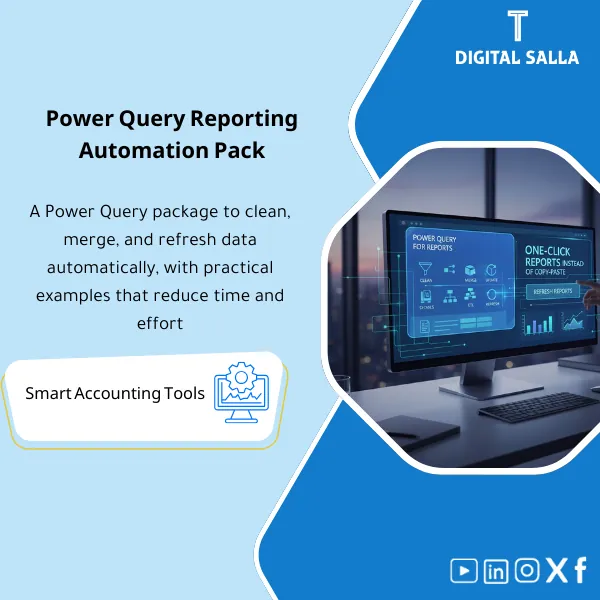
Power Query for Financial Reporting: Builds ETL flows to clean and merge TB, AR/AP, and bank data, refreshing reports with one click. Delivers repeatable monthly reporting without copy/paste—ideal for KPI dashboards in Excel.
Power Query for Financial Reporting
A ready-to-use ETL package in Excel (Cleaning + Merging + Updating) for generating Report Tables that can be refreshed via Refresh All
Value Proposition: If your monthly reports start with exporting files from the ERP followed by manual cut/paste and aggregation, the issue lies not in the “format of the report” but in the data pipeline. This Power Query package for financial reporting transforms source files (Excel/CSV/Exports) into an organized dataset through documented Power Query steps (Clean → Transform → Merge → Load), allowing the same report to be updated at each Month-End with a simple “Refresh” instead of rebuilding the data each time.
In 20 Seconds: What Will You Get?
- Excel Report Automation: The same report is rerun each month in the same path instead of “a new copy each time.”
- Power Query Data Cleaning: Standardizing dates/numbers/account codes/currencies + removing unnecessary rows/columns + handling Nulls.
- Power Query Data Merging: Merge across multiple sources (TB + COA + Cost centers + Vendors/Customers) with clear keys.
- ETL in Excel: Staging layer (Raw) followed by Transform layer then Output tables (Load) ready for Pivot/Report.
- One-Click Report Updates: Refresh All with clear rules for file/folder naming (to ensure updates occur without breaking).
- Mapping Tables: Linking tables (like COA Mapping / Category mapping) to stabilize classification instead of manual adjustments within the report.
- Checks & Flags: Error detection columns (Duplicates/Unmapped/Outliers) + a simplified log of what was updated.
CTA related to outputs: You will receive a ready Workbook + Queries + Mapping + Runbook so that updating the same report becomes a “Refresh” instead of manual cut/paste and aggregation.
Suitable For
- Reporting Accountant: Builds a Management pack from monthly Exports and needs a stable Dataset.
- Financial Controller: Wants the same aggregation rules each month with Checks before sending reports.
- FP&A / Analyst: Needs quick updates to Tables that feed Pivot/Power Pivot without re-preparing the data.
Not Suitable For
- Those without stable Exports (each month with completely different column formats without the possibility of standardization) — will first need to standardize the data source.
- Those looking for “complete Power BI Dashboards” with publishing and sharing — this Pack is aimed at an Excel/Power Query environment (and can be built upon later).
Without Automation / With Automation (Brief Comparison)
| Item | Without the Package | With the Package |
|---|---|---|
| Report Feeding | Copy/Paste + manual cleaning + difficulty in repeating the same steps | Documented Queries: Clean/Transform/Merge/Load |
| Source Change | Breaks the report as adjustments are made within the sheet itself | Mapping + Staging layer reduces report breakage and stabilizes merging rules |
| Aggregation | Aggregation by person/file version | Output tables with the same structure each period feeding Pivot/Reports |
| Review | Error detection is delayed (after sending the report) | Checks/Flags within the Dataset: Unmapped/Duplicates/Outliers before delivery |
Before Use: 5 Symptoms That Reports Are “Too Manual”
- Every month a new version of the same report is built because the data is prepared manually.
- The same “cleaning” is repeated (Date/Currency/Column Name/Account Code) without documentation.
- Merging between multiple files (TB + Details + Cost Centers) results in Duplicates or Missing keys.
- Classification changes based on who prepared the report (absence of a stable Mapping).
- Copy errors or discrepancies are discovered after sharing the report, as there are no Checks within the Dataset.
Power Query for Financial Reporting: Implementation Method (3 Steps Without Gaps)
Step 1: Preparation and Gathering Data Sources (Inputs)
- Establishing the export source(s): Excel/CSV from ERP (such as TB/GL/AP/AR/Inventory) and determining “where to place the files” (Folder).
- Establishing core column names or creating Mapping for column names when they differ between periods.
- Defining merge keys (Keys): Account/Cost center/Vendor/Customer/Document no. based on the report.
Step 2: Data Cleaning + Transformation + Merging (ETL)
- Power Query Data Cleaning: Converting data types (Date/Number/Text), removing blanks, standardizing codes, handling Nulls.
- Power Query Data Merging: Merge/Append with COA/Mapping/Dimensions tables and linking them with clear keys.
- Adding Checks: Unmapped keys, Duplicates after merging, Total discrepancies between the source and the Output.
Step 3: Loading Outputs + One-Click Report Updates
- Loading Output tables into Excel (Tables) or Data Model depending on the reporting method.
- Creating a “Refresh Runbook” page: Where to place the month’s files? What do you click? What do you review after Refresh?
- Issuing an approved version (Version) of the report/package and linking it to the Pack index for delivery.
Package Components (Clear Inventory)
-
Staging Layer (Raw Imports)
- Practical Purpose: Receiving Exports as they are (without manual adjustments) within a fixed path.
- When Used: When Exports arrive every month/week.
- Resulting Evidence: Raw tables/queries + definition of the source of each file (name/date).
-
Clean & Transform Queries (Power Query Data Cleaning)
- Practical Purpose: Standardizing data types, cleaning columns, and preparing a Dataset suitable for aggregation without manual intervention.
- When Used: In every Refresh, before any Merge or loading Outputs.
- Resulting Evidence: Documented Query steps (Applied Steps) + definition of final columns.
-
Merge/Append Queries (Power Query Data Merging)
- Practical Purpose: Merging multiple sources with clear keys (Keys) and producing a single Table ready for reporting.
- When Used: When building a Management pack or when there are multiple sources (TB + Dimensions).
- Resulting Evidence: Merge map + documentation of the Key used + Flags for merge failures (Unmatched).
-
Mapping Tables (Stable Classifications)
- Practical Purpose: Stabilizing classification (Account groups/Cost categories/Business lines) instead of manual adjustments each period.
- When Used: When there are changes in COA or adding new accounts/centers.
- Resulting Evidence: Mapping table + list of Unmapped items that need classification decisions.
-
Output Tables (Report-Ready)
- Practical Purpose: Producing final Tables that feed Pivot/Charts/Report sheets with the same structure each month.
- When Used: After successful ETL and before sharing the report.
- Resulting Evidence: Output dataset + Control totals + Audit columns (Period/Entity/Source).
-
Checks & Control Totals (Review Before Delivery)
- Practical Purpose: Detecting merge/data errors before sending the report: Duplicates/Unmapped/Outliers/Tie-out totals.
- When Used: After Refresh and before approving the version for sending.
- Resulting Evidence: Checks page + Status (Pass/Fail) + reasons for failure and corrective actions.
-
Refresh Runbook + Version/Change Log
- Practical Purpose: Clear operational instructions + setting an approved version and preventing multiple copies of the report.
- When Used: During Handover between teams + when changing a source or adding a new report.
- Resulting Evidence: Runbook + Version register + Change log (what changed and why).
Final delivery: Workbook + Queries + Mapping + Checks + Runbook so that report updates are linked to their source rather than manual effort.
What Should Be Included in the Delivery?
- 01-Workbook: An Excel file containing organized Power Queries (Staging/Transform/Merge/Outputs).
- 02-Queries Catalog: A list of each Query (its name + source + what it produces) + dependency order (Dependencies).
- 03-Mapping: Mapping tables (COA/Cost categories/Dimensions) + a list of Unmapped items.
- 04-Outputs: Output tables ready for reporting + Period/Entity columns + Control totals.
- 05-Checks: A checks page (Duplicates/Unmatched keys/Tie-outs/Outliers) + Pass/Fail status.
- 06-Refresh Runbook: Where to place the month’s files? What are the file names? Refresh steps + what to review after the update.
- 07-Versioning: Version register + Change log + last update date + Owner.
- 08-Pack Index: An index outlining the components of the delivery and suggested save paths.
After Implementation (Two Points Only)
- Operational Outcome for the Team: Updating the report becomes a fixed operational process: replacing Exports in the correct folder, then Refresh, then reviewing the Checks page, and then approving the version.
- Control/Audit Outcome: Transformation and merging steps are documented within Power Query (Applied Steps) with Control totals and Change log, facilitating the explanation of “how the numbers were built” during the review.
FAQ — Questions Before Purchase
Does the package work with any ERP?
Yes, provided that you can extract data in Excel/CSV format regularly (with the same columns or standardizable). Power Query handles Exports and does not require direct integration with the ERP.
Do I need Power BI?
No. The package is built for Excel Power Query. You can later transfer the same ETL logic to Power BI if desired.
What is the minimum data requirement to get started?
At least one export (such as TB or GL Details) + fixed file/folder naming conventions. The more sources (AP/AR/COA) you have, the greater the merging value.
Does it support multi-branch/entity companies?
Yes, if you have an Entity/Branch column or if Exports for each entity can be appended, with an additional column identifying the entity within the ETL.
What happens if a column name or the order of columns changes in the export?
This is handled through standardization/Mapping rules for columns in the Staging phase. The important thing is to have a consistent and documented logic for standardizing the source.
Is “one-click report updates” realistic?
Yes, meaning running Refresh All after placing the month’s files in the same folder and following the same rules, then reviewing Checks. If the source format changes drastically, a minor adjustment in Staging will be needed (documented via Change log).
Does the package include Tie-out checks with TB?
Yes, as an operational concept: Control totals within Outputs and a Checks page to track merging/classification discrepancies before approving the report.
Can the package be reused for other reports?
Yes, as an ETL framework: Staging/Transform/Merge/Outputs + Mapping + Checks. The addition would be in the new Queries Outputs and linking them to the same Dataset.
Is there documentation for the delivery (Runbook)?
Yes: Clear operational page + Pack index + Version/Change log to facilitate Handover within the team.
Ready to stop building the same report from scratch every month?
Outputs: Excel Report Automation + Power Query Data Cleaning/Merging + ETL in Excel within a single Workbook with Checks, Runbook, and Versioning.
| المسمّى الوظيفي | |
|---|---|
| Duration | |
| المستوى | |
| التحديثات | |
| القطاع | |
| الصيغة |
Related products

Chart of Accounts Setup Service

CIT & Transfer Pricing – Excel Files

DOA Matrix – Excel Template
FS Mapping Model – Excel File
Reviews
Clear filtersThere are no reviews yet.